Omodachi: your Omarchy desktop, on the iPhone and iPad you already carry
Omodachi is an open-source companion for Omarchy, the Arch Linux and Hyprland desktop. It turns an iPhone or iPad into an extension of your Omarchy computer: a second screen beside the computer's own or the whole desktop taken over, the Omarchy menu and your keybindings, the agent running on the computer, Herdr and a terminal. There is no account, no cloud service and no analytics.
With JavaScript on, this page is an interactive mock of the App on an iPad that has taken over an Omarchy desktop, running on demo data.
How it works
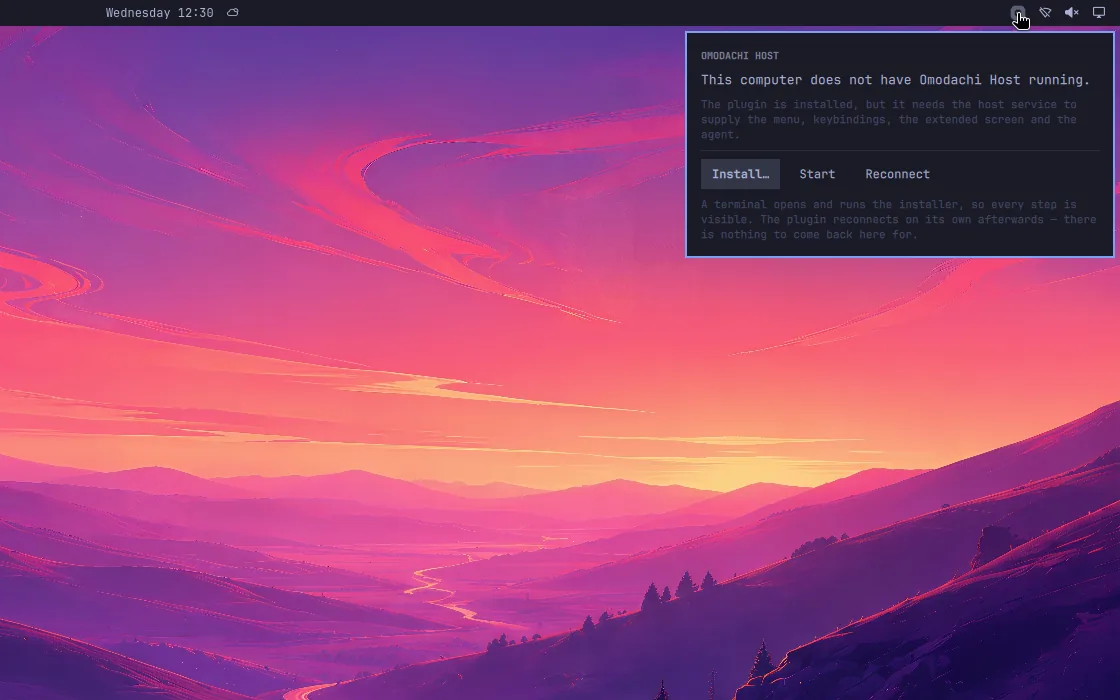
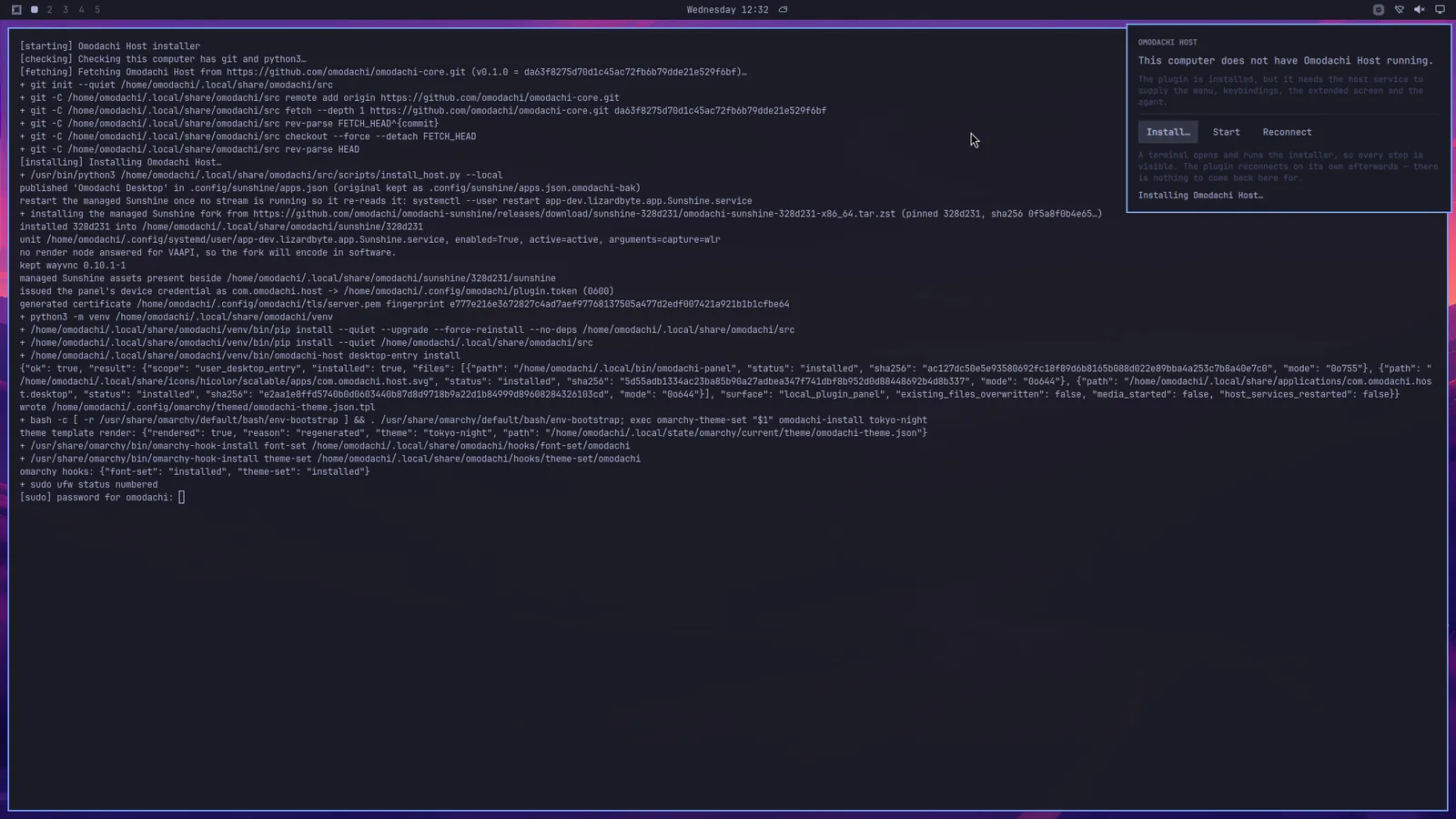
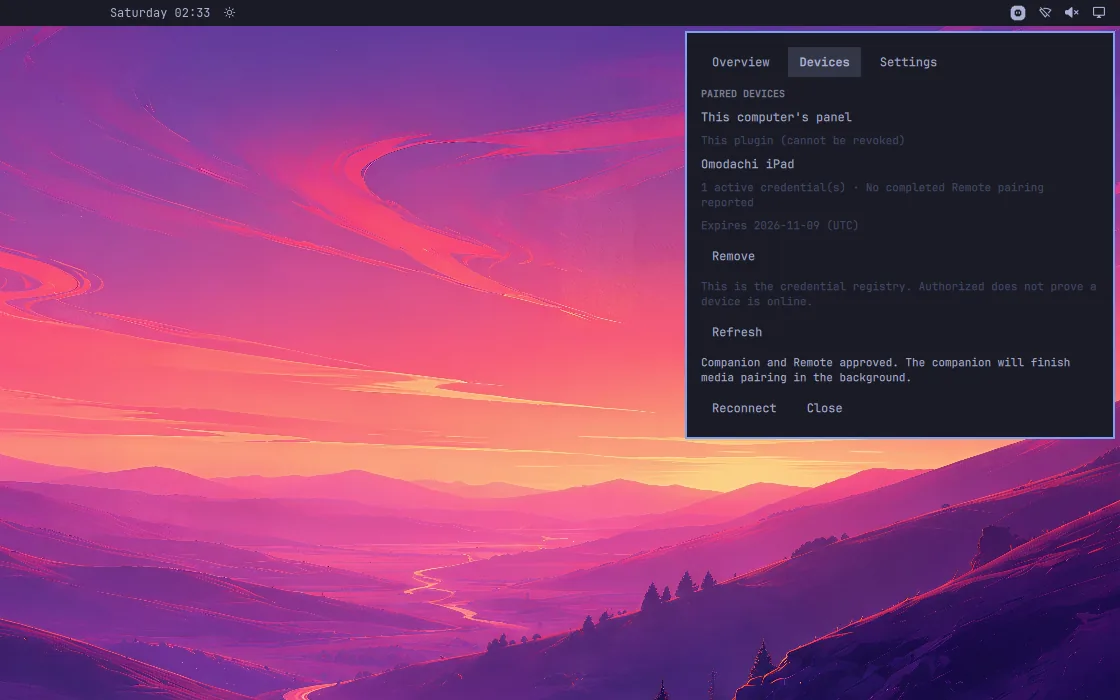
- The Omarchy plugin adds an Omodachi icon to the bar and a panel under it. One Install button in that panel puts the host, omodachi-core, on the same computer.
- The host runs on your Omarchy machine and owns the real data and actions: the menu, keybindings, workspaces, the remote screen, Herdr, SSH and notifications.
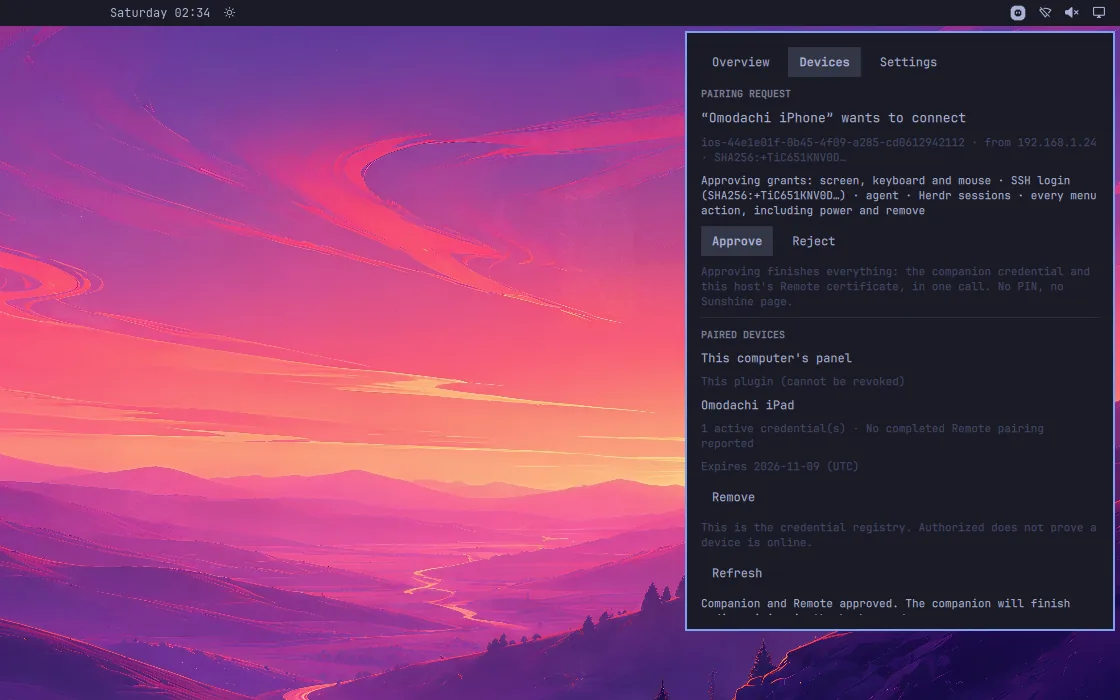
- The iPhone and iPad app reaches the computer over Tailscale: install it on both and paste the computer's name into the App. Without Tailscale it finds the computer on your local network and works on that Wi-Fi only. You let each device in from the panel on the computer.
Features
Remote: Extra screen or Take over
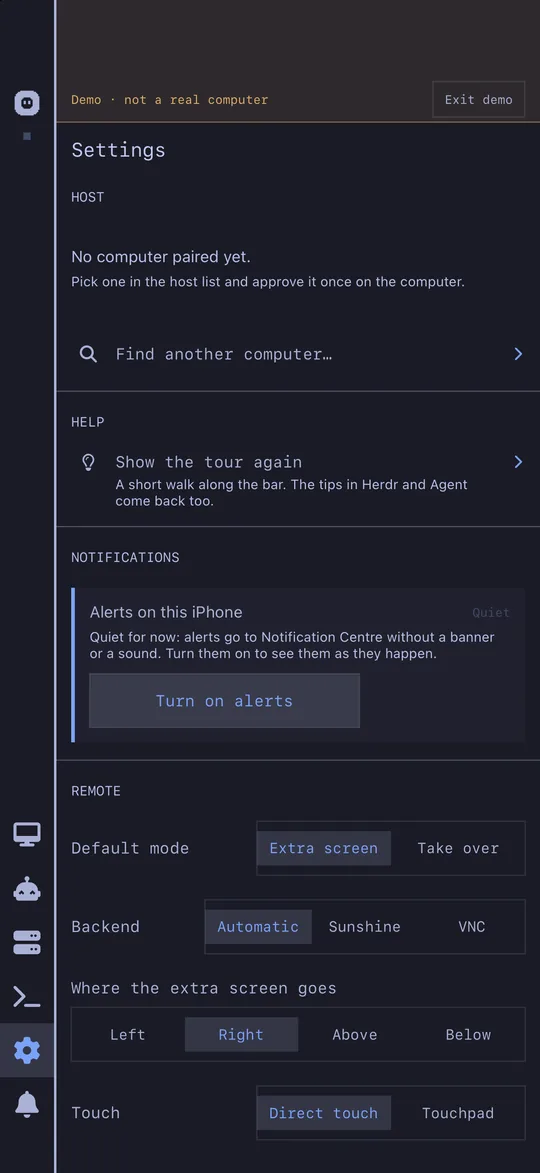
On an iPhone or an iPad. Extra screen adds a display beside the computer's own, and windows drag across. Take over moves every workspace to the device and turns the computer's own screen off until you end it. Both stream through our Sunshine fork, with direct touch, a touchpad mode and keyboard shortcuts. When Sunshine cannot stream, for example on a computer without a VA-API video encoder, they use WayVNC instead, with a one-finger pointer and the keyboard. During a session the App's bar keeps three quick actions at hand: the keyboard, pointer mode and host audio.
Seven panels
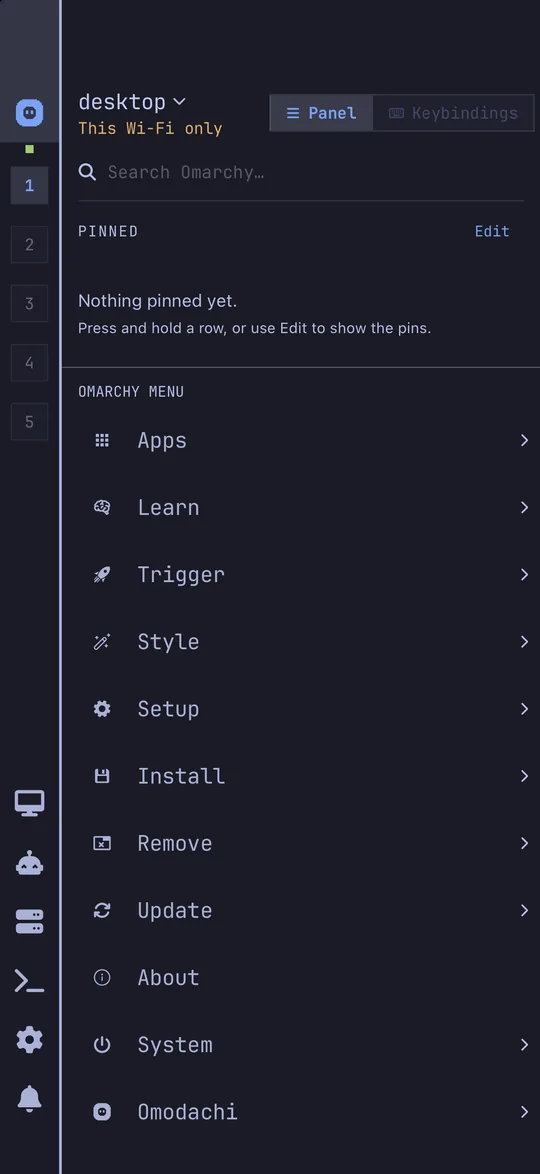
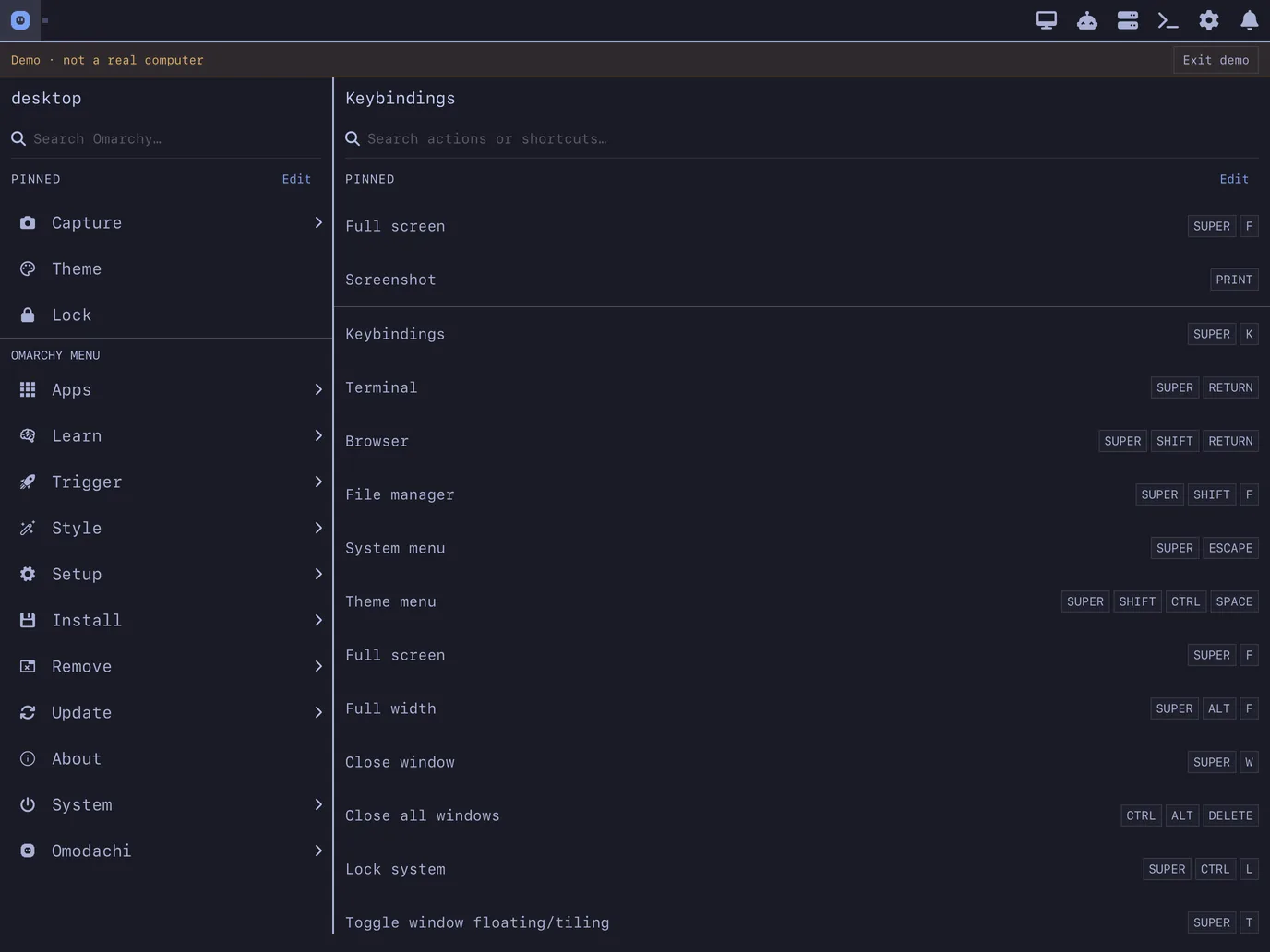
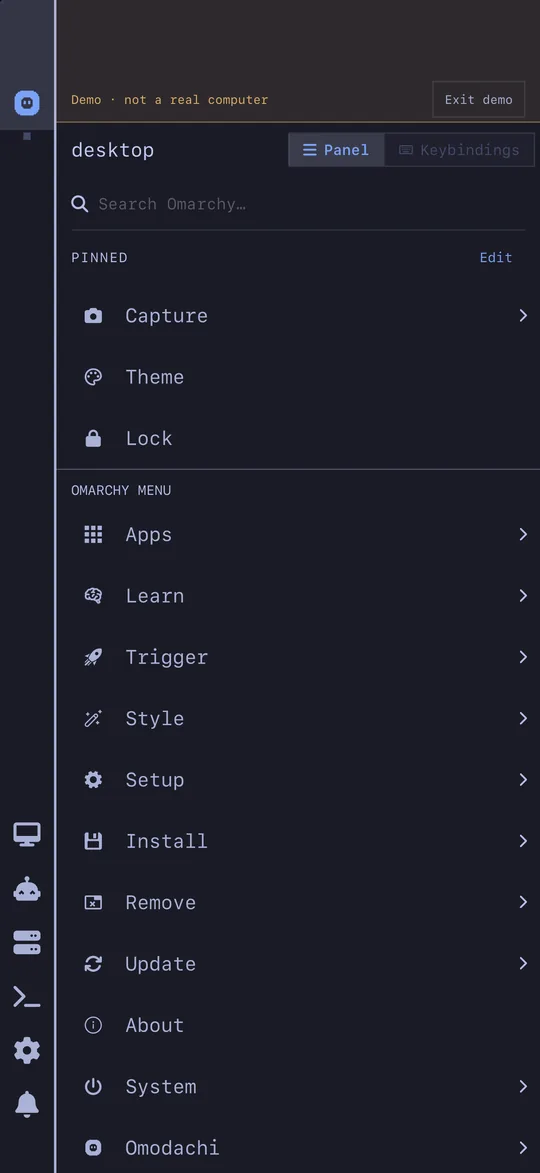
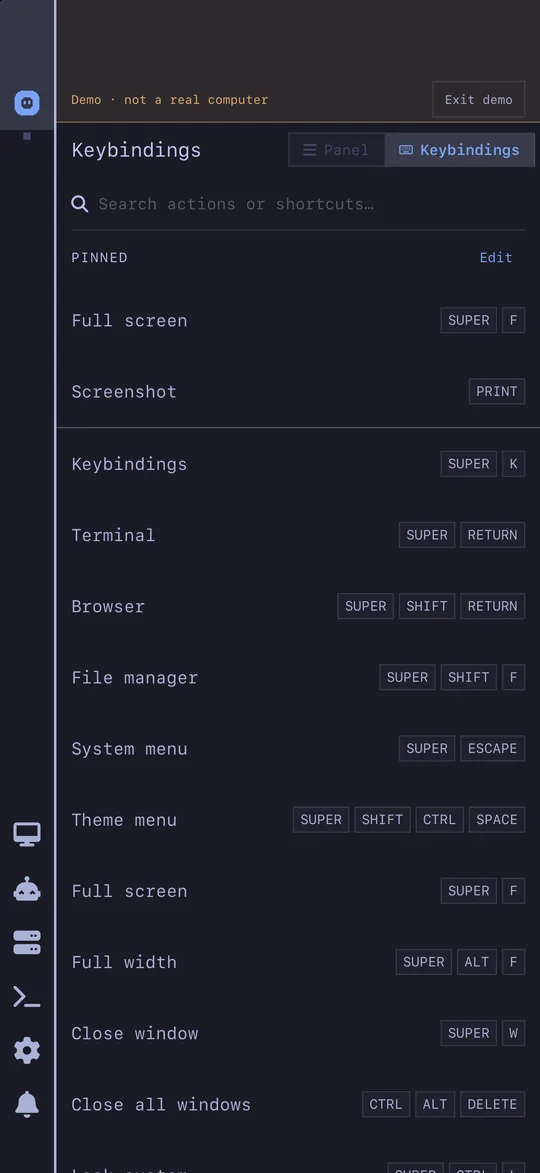
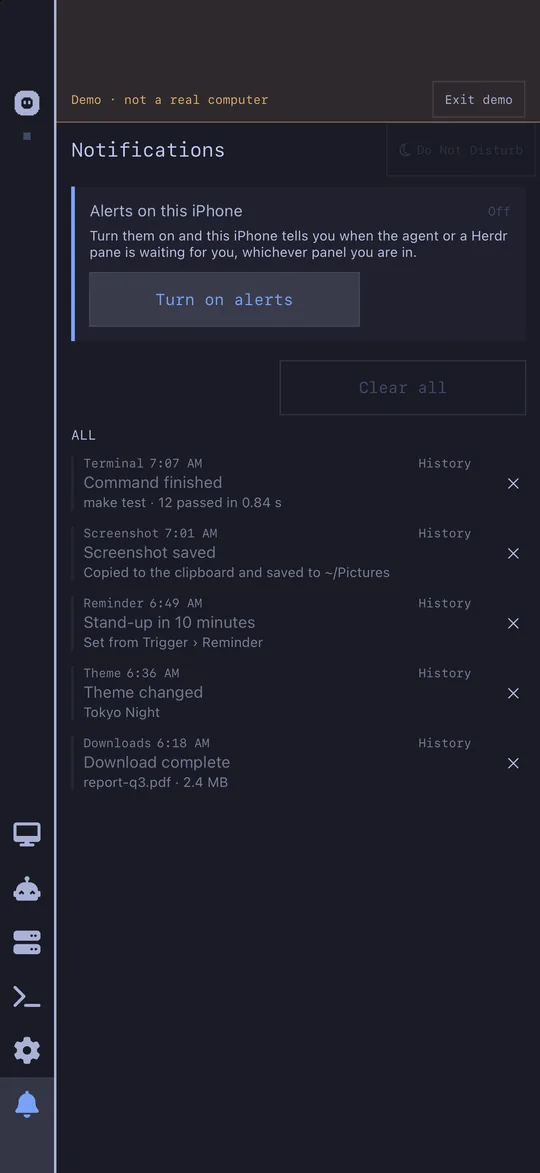
The Omarchy menu beside every keybinding, with rows you can pin; Remote; Agent, to talk to the agent already running on the computer, send it photos and files, answer what it asks and start a new conversation; Herdr; SSH; Settings; and the desktop's notifications, each a tap to open or clear, with Do Not Disturb.
Odomo, for a locked phone
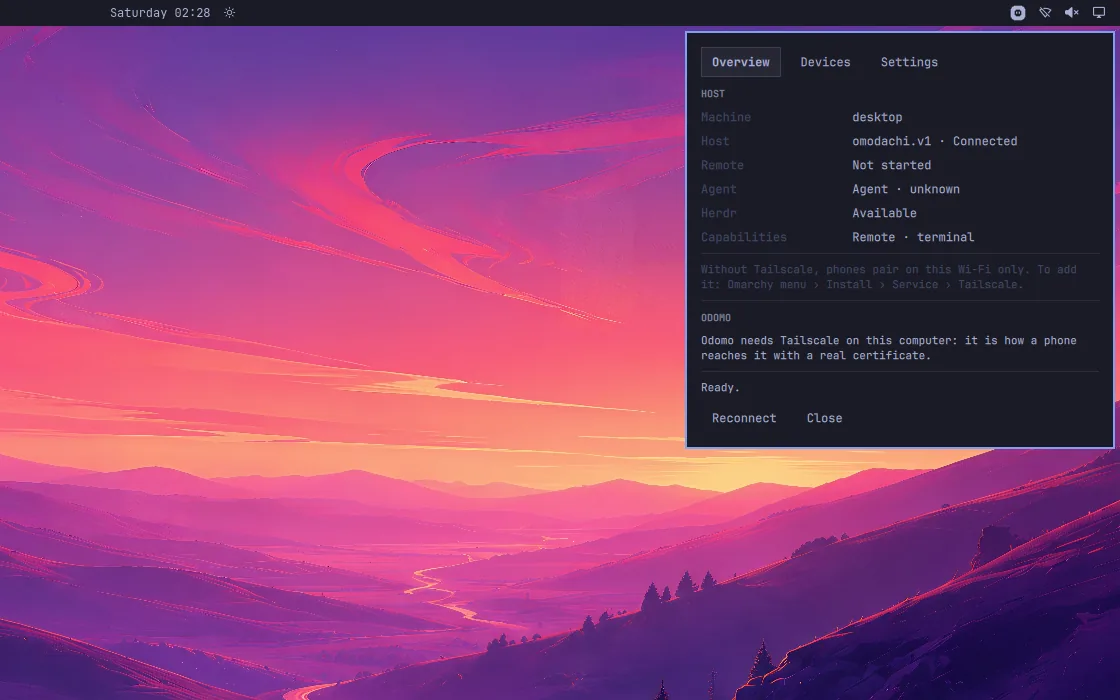
While the App is open it tells you when the agent or a Herdr pane is waiting for you. You can allow or deny an approval right on the alert, and while you are using the computer the alerts wait. Odomo, the computer's own web app on your Home Screen, reaches your phone even when it is locked; it needs Tailscale on the computer.
Face ID approval for sudo
Optional. When the computer asks for your password for sudo or a system prompt, approve it with Face ID or Touch ID on your device. The device never stores or sees the password, and typing the password keeps working.
Herdr and a terminal
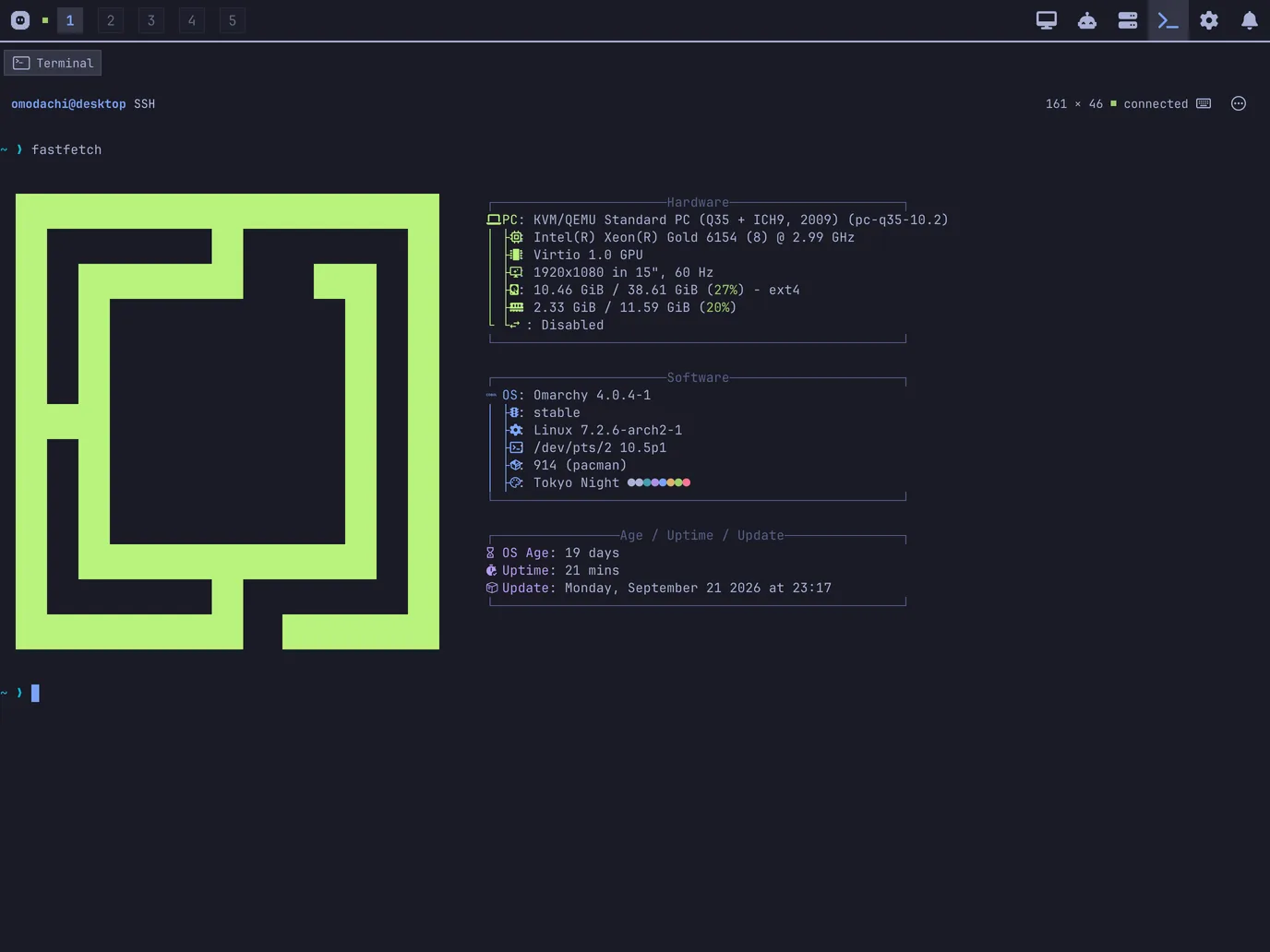
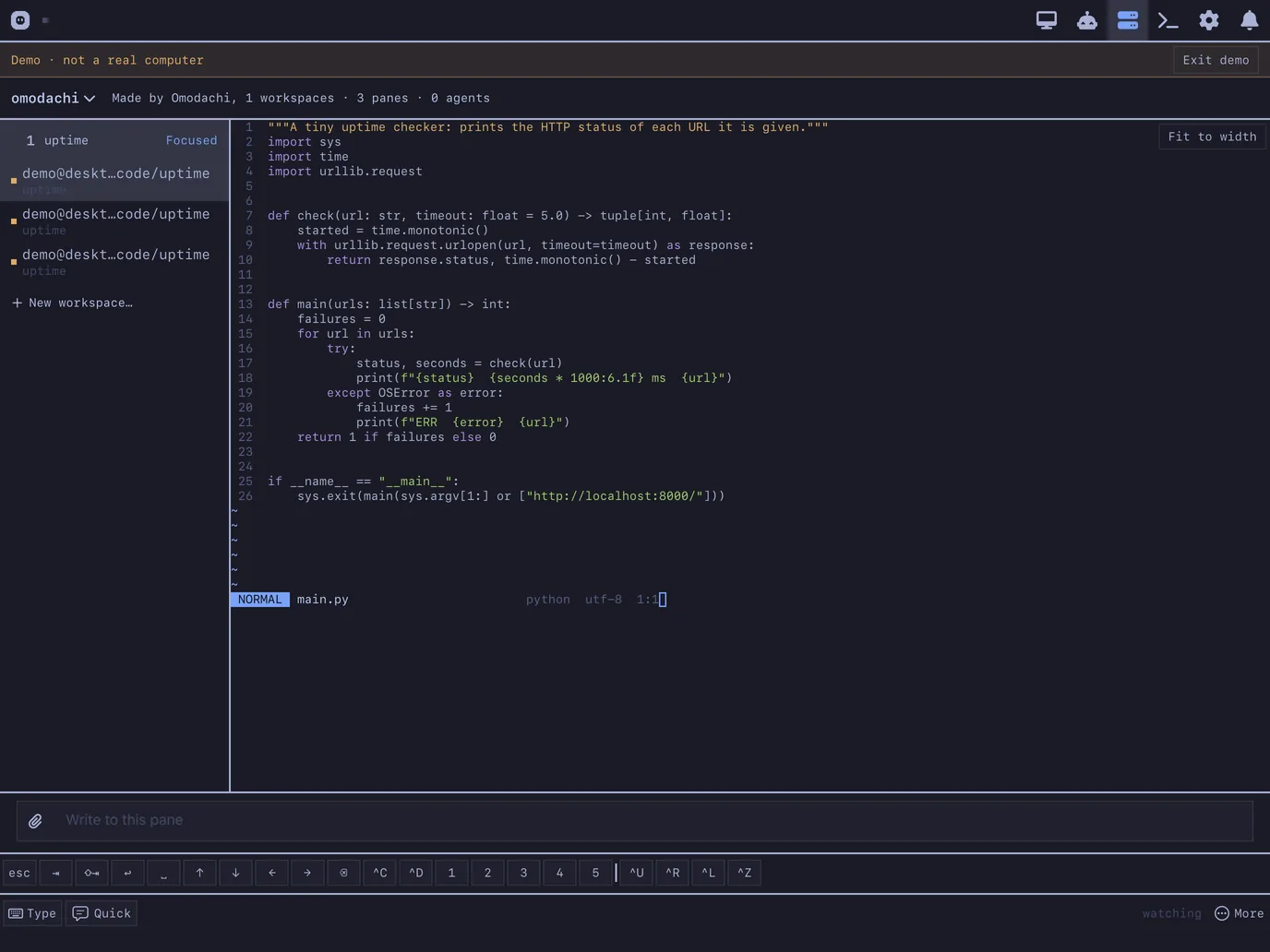
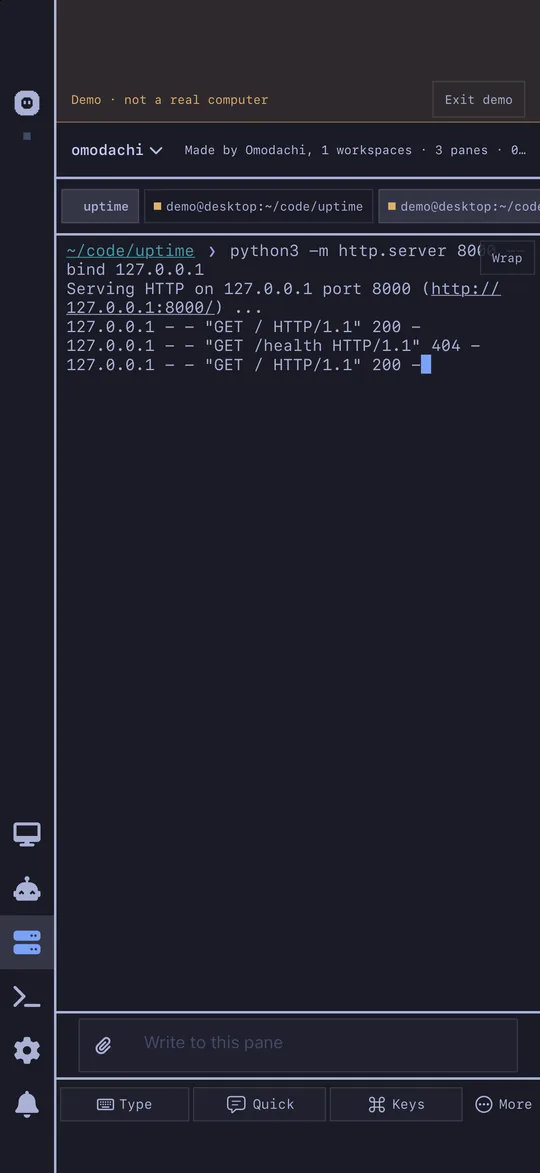
Your Herdr session becomes a grid of panes you can tap, each keeping its name from the desktop, with a keys row, quick replies and a box that types into the pane without taking it. Switch sessions, start a stopped one, or open a new workspace in a folder you pick. An SSH terminal on the computer opens with nothing to configure.
The agent, on top of Omarchy's agent panel
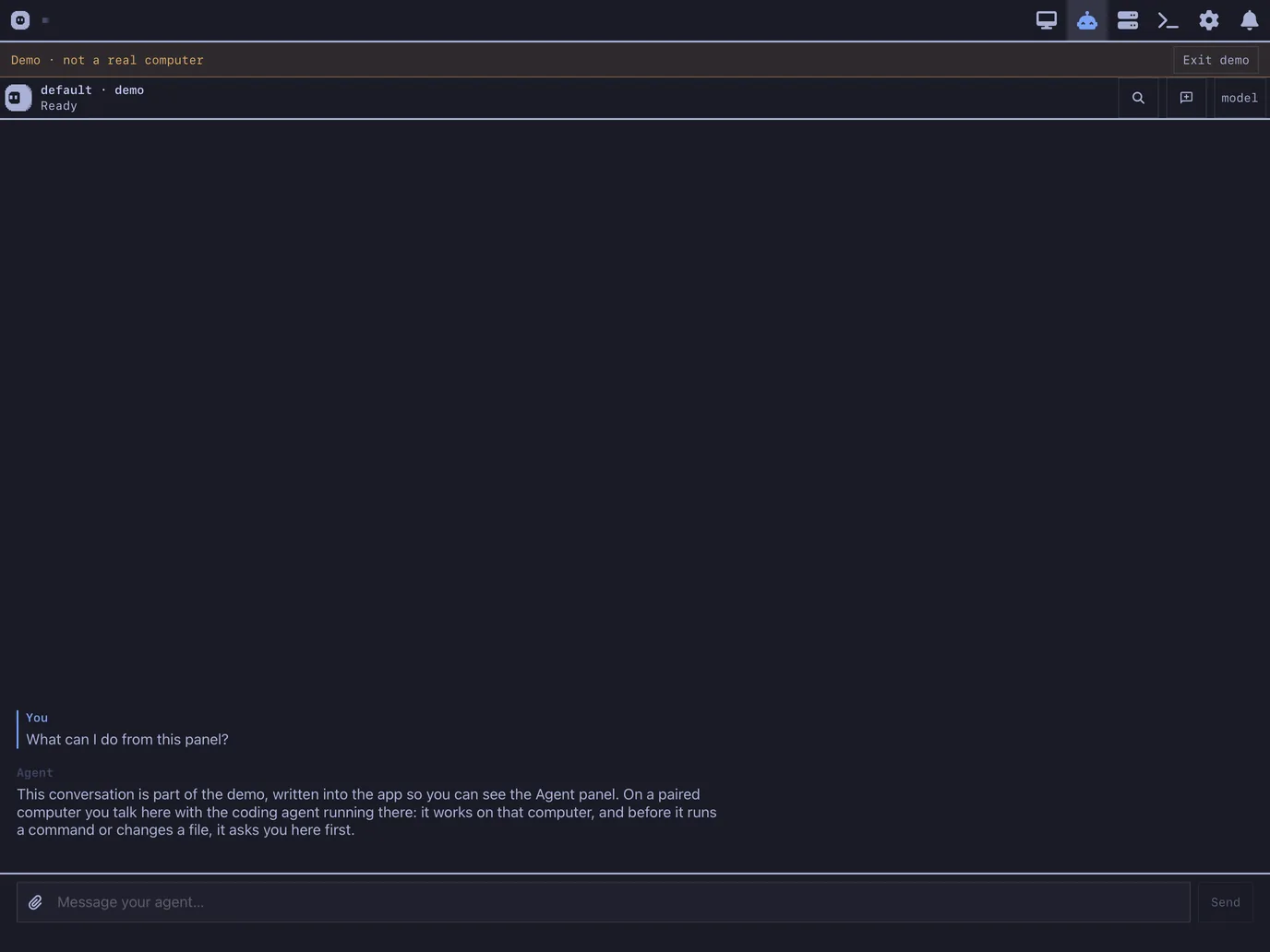
Omarchy's own agent panel shows what each AI coding agent on the computer has used: its limits, and its tokens by day and by model. Omodachi adds the conversation itself, on the iPhone or iPad. The Agent panel talks to the agent already running on the computer, and its face, the Omodachi o, shows whether it is idle, thinking, running a command, waiting for you or done.
- Away from the desk. Talk to the agent on your computer from the phone. Over Tailscale it works away from home too; without Tailscale, on the same Wi-Fi.
- Approve or decline from the phone. When the agent asks before it runs something, answer from the phone. The App's bar shows that it is waiting, and Odomo, the computer's own web app, reaches the phone even when it is locked.
- Photos and files. Pick a photo or a file, or paste a picture, and it goes with your message.
- Links open the right way. A web link in a reply opens on the phone. A file it names opens on the computer and Remote shows it to you; a link never runs a program.
- New conversation and model. Start a new conversation in one tap, and pick the model the agent answers with.
- Every agent in Herdr. Your Herdr panes mark each agent and say what it is doing, and the one that is waiting can be answered from the grid.
Get it
- Omarchy plugin marketplace: listed. The plugin is on the Omarchy marketplace; the App Store follows.
- The plugin on GitHub. Add it to Omarchy with one command, then press Install in its panel.
- The iPhone and iPad app. Build it yourself from the source with Xcode. TestFlight (internal), App Store: coming.
omarchy plugin add https://github.com/omodachi/omodachi-plugin.git --enable
Screenshots
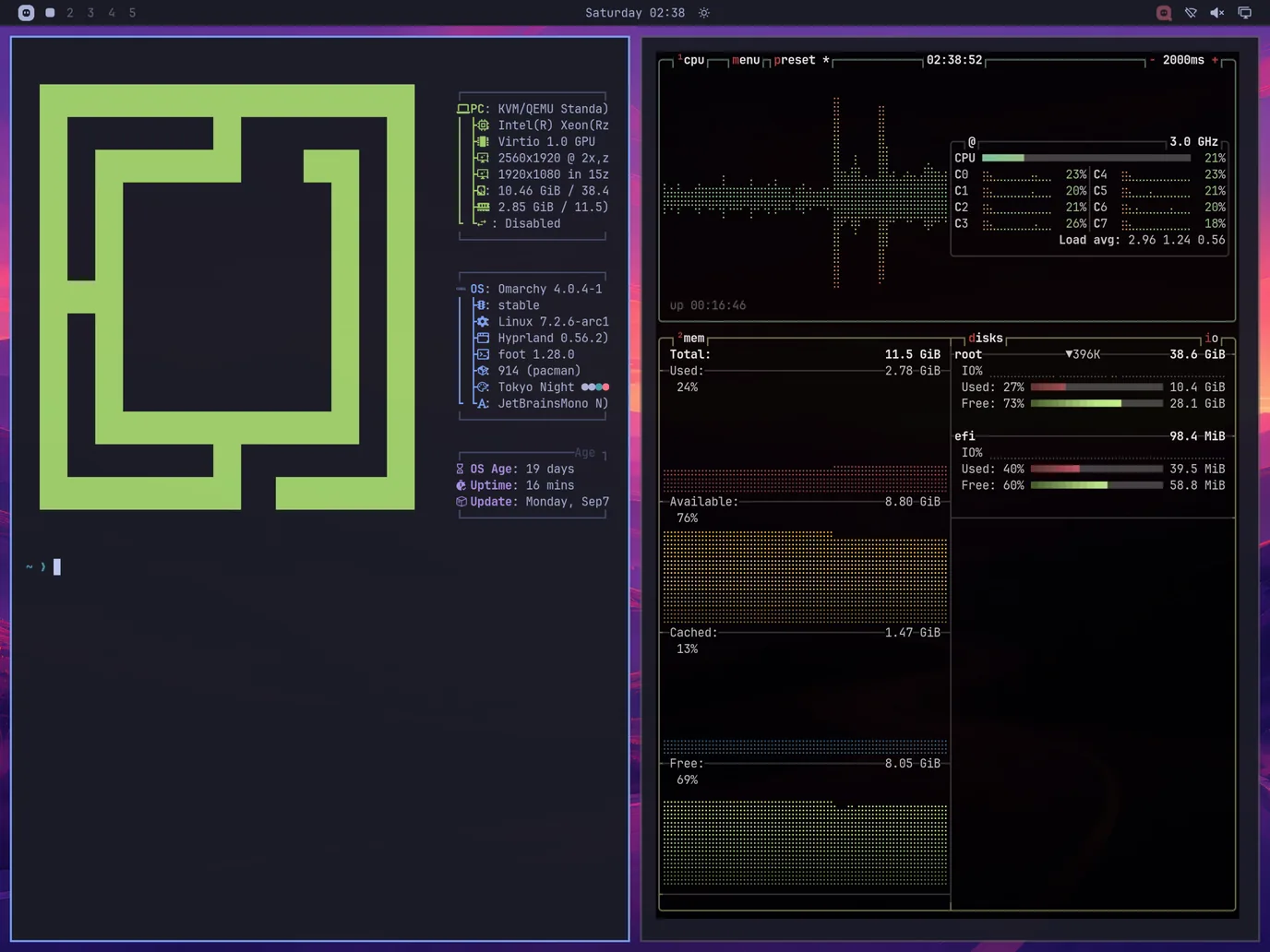
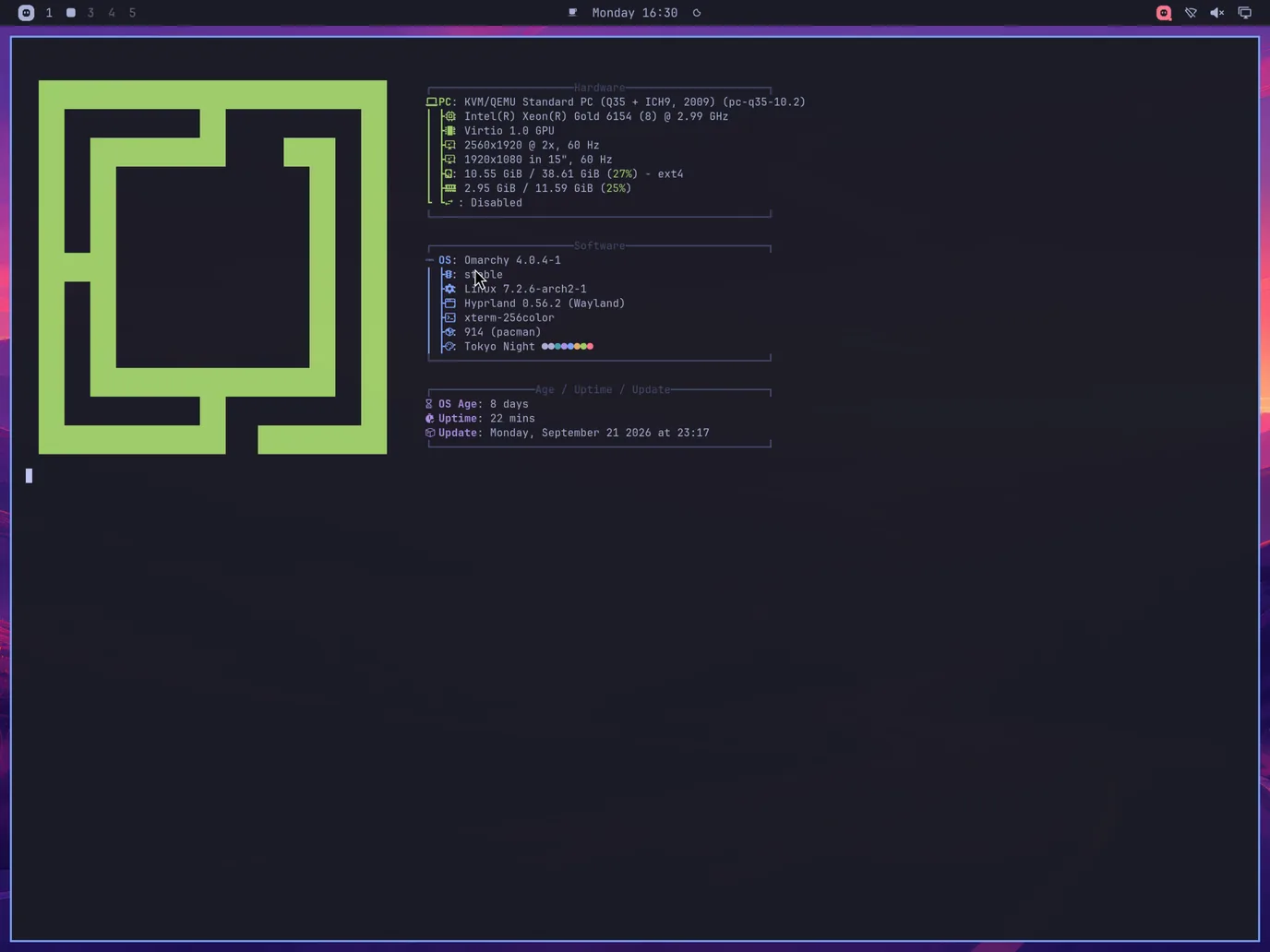
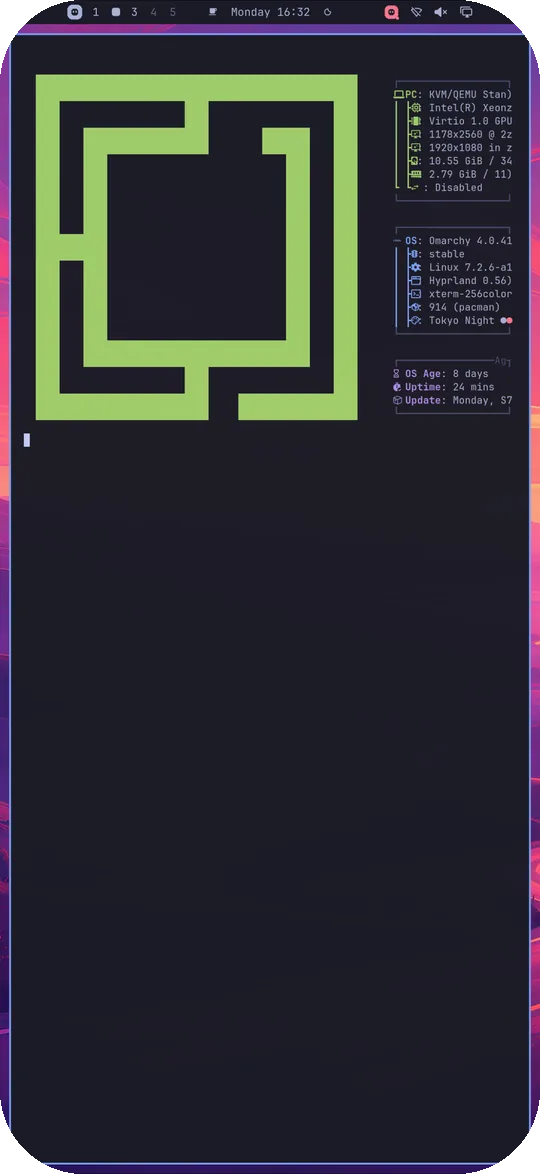
Real screens: a fresh Omarchy install on a throwaway VM, the App paired with it, and the App in its demo mode.
Open source
Every part of Omodachi is open source. The host and the Omarchy plugin are MIT; the iPhone and iPad app and our Sunshine fork are GPL-3.0.
- omodachi-plugin, MIT: the Omarchy plugin: the bar icon, the panel and pairing a device.
- omodachi-core, MIT: the host that runs on the Omarchy computer and does the real work.
- omodachi-ios, GPL-3.0: the native iPhone and iPad app.
- omodachi-sunshine, GPL-3.0: our fork of LizardByte's Sunshine, which streams the remote screen.
Omodachi is an independent project with no tie to Omarchy upstream.